Balance and coordination are important fitness skills in athletics.
What is balance and coordination
Balance
There are two types of balance.
Static balance is the ability to remain upright and steady when stationary such as when holding the start position in a race.
Dynamic balance is the ability to remain upright and steady when moving, such as when moving from one leg to the other during running.
Coordination
The ability to use different parts of the body together smoothly and efficiently such as when coordinating vision + leg muscles to jump from the long jump board.
How to support athletes with balance and coordination using the TREE framework.
T – Teaching/coaching style
R – Rules and regulations at the Centre
E - Environment
E – Equipment
Teaching/Coaching style
How the volunteer, parent or coach organises the events, encourages skill development and communicates information to athletes.
Use open ended questions such as "What is the first step".
Practice the steps.
Use games to practise skills in a less competitive environment.
Some steps may need to be practiced on their own.
Repeat the steps as many times as needed.
Offer more opportunities to practice.
Put the steps together.
Build upon each step as the skill is learned.
Use positive feedback specific to the action.
Positive feedback or praise is used to build trust.
Specific feedback focuses on the action, such as “you lifted your knees higher”. This helps athletes learn new motor skills.
You need trust first before suggesting anything to change.
With permission and once you have built trust, use video feedback of the athlete to show their technique and discuss what they could try differently.
Teaching/Coaching for athletes using a frame runner
Frame running allows the athlete to run in a supported and balanced way.
The frame has 3 wheels, a handlebar, body plate and saddle.
The athlete moves themselves using their legs.
The large wheels mean the frame can be easier to move than a walking frame and the width provides stability for safety and balance, especially when running at speed.
Athletes using a frame runner will perform better on a synthetic track but can participate on grass.
The frame runner can become unbalanced if an athlete turns too sharply when cornering at speed.
If the frame is wobbling a lot, check:
The size of the frame (athlete may need a larger frame with a wider wheelbase).
The tension of the compensator spring.
How much the athlete is pulling on the handlebars when moving.
Set up of the frame is essential to a fair and safe competition. The first set up will likely be done by a physiotherapist or the Frame provider / loan service. Beginner athletes may take time to get the fit just right for them. The saddle is positioned so that the athletes’ feet push off the ground and enough support is provided to the body that they don’t collapse.
Safety.
Athletes wear a helmet.
Consider padded bike pants to reduce saddle soreness and chafing.
Check that the front brake calipers are on and any quick release wheel locks are tight.
Getting on and off the frame;
Rear brakes on.
Support from helpers who know the athlete.
Check tyre pressure every time.
May need to stop the frame rolling forward by using a wall or block in front of the front wheel.
Storage.
May need to store at the Centre.
Technique.
There are no “wrong” movements, but some will be more efficient and effective than others.
The athlete and coach will practise;
The athletes’ position on the Frame Runner which needs to be stable and allow leg movements.
The position of the athletes’ head – look in the direction of the race.
The athletes’ push-off and footwork at the start and running the race – optimal push off needed for speed.
The position of the athletes’ toes during the race – are they lifting up for each stride, do they knock in to each other or the frame.
The athletes position enables good breathing – the trunk is not squashed or bent too far forward or backward.
Build up to long strides.
Running technique when increasing speed.
Practise, practise, practise - Repetition of the desired movement pattern lays down new brain pathways.
Competition Frame Running is available to people with the following functional impairments;
Hypertonia (high tone).
Spasticity.
Dystonia.
Rigidity.
Ataxia.
Athetosis/Chorea.
Athletes may wish to be classified for Frame running. Classification is through Athletics Australia.
Teaching/Coaching for athletes using a race wheelchair
The wheelchair has 3 wheels (2 large in the back and one smaller in the front), hand rims to push, steering system (compensator), braking system and seat (called a cage).
The compensator allows the athlete to set the direction of the wheelchair without needing to steer. It holds the wheel in one position so the wheelchair travels in an arc but does not need the athlete to steer. The compensator has a bolt on each side which can be screwed in or out depending on the lane.
The athlete moves themselves using their arms.
The athlete will sit or kneel.
Athletes using a race wheelchair will perform better on a synthetic track but can compete on grass.
Can compete against peers who are running with safety procedures in place for the end of the race and for curves. You may want to consider a lane between each athlete.
Set up of the wheelchair is essential to a fair and safe competition. The set up will be done by a physiotherapist or the wheelchair provider / loan service.
Safety.
Athletes wear a helmet.
Athletes wear gloves.
Check and/or pump-up tyres.
The wheelchairs can easily tip backwards if the athlete leans back past a certain point. Make sure the athlete knows how far they can safely lean back.
Getting on and off the wheelchair
Brakes on.
Support from helpers who know the athlete only if needed.
Pre-race.
Adjust and set compensator at the correct angle to arc around the track.
Access to the track is needed.
Time is needed.
Start.
Front wheel in Centre of lane and two back wheels are evenly between the lane lines.
End.
Use steering compensator after the finish line to keep following the track around. It is important that all wheelchair users follow the track around after the finish line so they do not run in to each other. They turn by tapping the side of the compensator in the direction they want to go.
Storage.
May need to store at the Centre.
Technique.
The athlete and coach will practise;
The athletes’ position in the seat.
The position of the athletes’ trunk and head – lean forward and look in the direction of the race.
The athletes’ push stroke.
Hands contact the push rim forward and with elbows bent.
Hands drive down and follow the push rim around as wheel turns.
Push off rim at the rear in a flicking motion and let go of rim.
Bring arms up and start again.
The athletes steering.
Tap compensator left or right during the race to adjust the angle slightly.
The braking system.
Most braking is controlled by the hands on the back wheels.
Front wheel brake can be used but at high speed will cause the wheelchair to skid.
Build up to fast powerful pushes.
Practise, practise, practise - Repetition of the desired movement pattern lays down new brain pathways.
Competition wheelchair racing is available to people with a qualifying disability;
Amputee.
Spinal cord injury.
Cerebral palsy.
Spina bifida.
Rules and regulations at the Centre
Can be modified at the Centre so athletes can participate. Please note that specific rules may apply to higher level competition.
You can reduce the height, weight or size of equipment.
You can swap standard athletics equipment for modified equipment such as the turbojav or bean bags.
You can use equipment with bright colours, different textures or different sounds.
You can modify for safety when using equipment
Staggered starts or rolling starts (athletes starting at set intervals).
Extra lane between competitors.
Environment
Changes you can make to the physical space to be inclusive.
To provide a space that everyone can access and use, it is important that the parking lot, entry to field, field, track, viewing area, and amenities can be used by everyone.
Prepare the environment by organising seats/benches in the waiting areas.
Keep the environment organised and store equipment in the same place each time so athletes don’t trip.
Think about lane allocations.
Encourage the athlete to use the lane with the smoothest surface to reduce risk of injury due to reduced balance and body awareness.
Sometimes the inside lane has a lip on the track which can be a tripping hazard.
The outside lane has a gentler curve which is helpful if using equipment or the athlete needs help from an adult (for example parent or support worker or therapist).
Athletes with reduced balance and coordination will likely need a seat while waiting at and between events.
Keep equipment in the same location each time and encourage athletes to return equipment to the correct location.
Assistive Technology (equipment) is used to support balance so the athlete can compete. You can allow the athlete to use their everyday equipment. This is Assistive Technology that they use in their everyday life, not for a short-term injury.
Crutches.
Walking frame.
Wheelchair.
Orthotics.
Prosthetics.
Specialised Assistive Technology for athletics can be used.
Frame Runner.
Race Wheelchair.
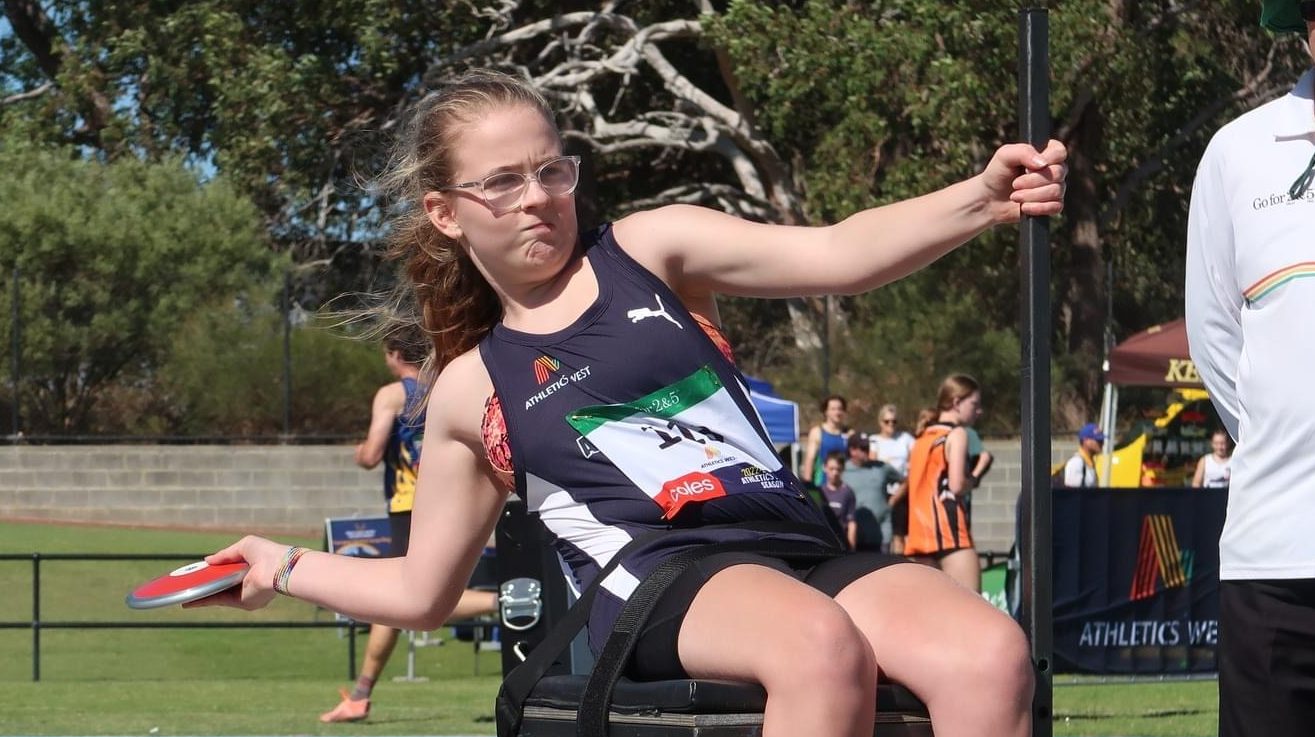
Throwing frame.
Athletes may need a helper adult (for example parent or support worker or therapist) to use the equipment safely and effectively, especially when learning. Ask the athlete what they need.
Don’t touch or move an athlete’s Assistive Technology without their permission. If an athlete using Assistive Technology looks like they need help, ask first before assisting.
Come and try days are an opportunity for athletes with disability to try Assistive Technology which might help them in athletics. Athletes without disability can try the equipment also to gain an understanding of how complex they are to use.
Coles Little Athletics Australia acknowledges and pays respect to all traditional custodians of the lands of which we work, run, jump and throw throughout Australia. We pay respect to elders both past, present and emerging.
We are committed to a positive future for all Aboriginal and Torres Strait Islander communities and to honor their ongoing cultural and spiritual connections to this country and recognize the role and value of culture.
Accessibility
Accessibility modes
Epilepsy Safe Mode
Dampens color and removes blinks
This mode enables people with epilepsy to use the website safely by eliminating the risk of seizures that result from flashing or blinking animations and risky color combinations.
Visually Impaired Mode
Improves website's visuals
This mode adjusts the website for the convenience of users with visual impairments such as Degrading Eyesight, Tunnel Vision, Cataract, Glaucoma, and others.
Cognitive Disability Mode
Helps to focus on specific content
This mode provides different assistive options to help users with cognitive impairments such as Dyslexia, Autism, CVA, and others, to focus on the essential elements of the website more easily.
ADHD Friendly Mode
Reduces distractions and improve focus
This mode helps users with ADHD and Neurodevelopmental disorders to read, browse, and focus on the main website elements more easily while significantly reducing distractions.
Blindness Mode
Allows using the site with your screen-reader
This mode configures the website to be compatible with screen-readers such as JAWS, NVDA, VoiceOver, and TalkBack. A screen-reader is software for blind users that is installed on a computer and smartphone, and websites must be compatible with it.
Online Dictionary
Readable Experience
Content Scaling
Default
Text Magnifier
Readable Font
Dyslexia Friendly
Highlight Titles
Highlight Links
Font Sizing
Default
Line Height
Default
Letter Spacing
Default
Left Aligned
Center Aligned
Right Aligned
Visually Pleasing Experience
Dark Contrast
Light Contrast
Monochrome
High Contrast
High Saturation
Low Saturation
Adjust Text Colors
Adjust Title Colors
Adjust Background Colors
Easy Orientation
Mute Sounds
Hide Images
Hide Emoji
Reading Guide
Stop Animations
Reading Mask
Highlight Hover
Highlight Focus
Big Dark Cursor
Big Light Cursor
Cognitive Reading
Virtual Keyboard
Navigation Keys
Voice Navigation
Accessibility Statement
www.littleathletics.com.au
23/03/2026
Compliance status
We firmly believe that the internet should be available and accessible to anyone, and are committed to providing a website that is accessible to the widest possible audience,
regardless of circumstance and ability.
To fulfill this, we aim to adhere as strictly as possible to the World Wide Web Consortium’s (W3C) Web Content Accessibility Guidelines 2.1 (WCAG 2.1) at the AA level.
These guidelines explain how to make web content accessible to people with a wide array of disabilities. Complying with those guidelines helps us ensure that the website is accessible
to all people: blind people, people with motor impairments, visual impairment, cognitive disabilities, and more.
This website utilizes various technologies that are meant to make it as accessible as possible at all times. We utilize an accessibility interface that allows persons with specific
disabilities to adjust the website’s UI (user interface) and design it to their personal needs.
Additionally, the website utilizes an AI-based application that runs in the background and optimizes its accessibility level constantly. This application remediates the website’s HTML,
adapts Its functionality and behavior for screen-readers used by the blind users, and for keyboard functions used by individuals with motor impairments.
If you’ve found a malfunction or have ideas for improvement, we’ll be happy to hear from you. You can reach out to the website’s operators by using the following email
Screen-reader and keyboard navigation
Our website implements the ARIA attributes (Accessible Rich Internet Applications) technique, alongside various different behavioral changes, to ensure blind users visiting with
screen-readers are able to read, comprehend, and enjoy the website’s functions. As soon as a user with a screen-reader enters your site, they immediately receive
a prompt to enter the Screen-Reader Profile so they can browse and operate your site effectively. Here’s how our website covers some of the most important screen-reader requirements,
alongside console screenshots of code examples:
Screen-reader optimization: we run a background process that learns the website’s components from top to bottom, to ensure ongoing compliance even when updating the website.
In this process, we provide screen-readers with meaningful data using the ARIA set of attributes. For example, we provide accurate form labels;
descriptions for actionable icons (social media icons, search icons, cart icons, etc.); validation guidance for form inputs; element roles such as buttons, menus, modal dialogues (popups),
and others. Additionally, the background process scans all the website’s images and provides an accurate and meaningful image-object-recognition-based description as an ALT (alternate text) tag
for images that are not described. It will also extract texts that are embedded within the image, using an OCR (optical character recognition) technology.
To turn on screen-reader adjustments at any time, users need only to press the Alt+1 keyboard combination. Screen-reader users also get automatic announcements to turn the Screen-reader mode on
as soon as they enter the website.
These adjustments are compatible with all popular screen readers, including JAWS and NVDA.
Keyboard navigation optimization: The background process also adjusts the website’s HTML, and adds various behaviors using JavaScript code to make the website operable by the keyboard. This includes the ability to navigate the website using the Tab and Shift+Tab keys, operate dropdowns with the arrow keys, close them with Esc, trigger buttons and links using the Enter key, navigate between radio and checkbox elements using the arrow keys, and fill them in with the Spacebar or Enter key.Additionally, keyboard users will find quick-navigation and content-skip menus, available at any time by clicking Alt+1, or as the first elements of the site while navigating with the keyboard. The background process also handles triggered popups by moving the keyboard focus towards them as soon as they appear, and not allow the focus drift outside it.
Users can also use shortcuts such as “M” (menus), “H” (headings), “F” (forms), “B” (buttons), and “G” (graphics) to jump to specific elements.
Disability profiles supported in our website
Epilepsy Safe Mode: this profile enables people with epilepsy to use the website safely by eliminating the risk of seizures that result from flashing or blinking animations and risky color combinations.
Visually Impaired Mode: this mode adjusts the website for the convenience of users with visual impairments such as Degrading Eyesight, Tunnel Vision, Cataract, Glaucoma, and others.
Cognitive Disability Mode: this mode provides different assistive options to help users with cognitive impairments such as Dyslexia, Autism, CVA, and others, to focus on the essential elements of the website more easily.
ADHD Friendly Mode: this mode helps users with ADHD and Neurodevelopmental disorders to read, browse, and focus on the main website elements more easily while significantly reducing distractions.
Blindness Mode: this mode configures the website to be compatible with screen-readers such as JAWS, NVDA, VoiceOver, and TalkBack. A screen-reader is software for blind users that is installed on a computer and smartphone, and websites must be compatible with it.
Keyboard Navigation Profile (Motor-Impaired): this profile enables motor-impaired persons to operate the website using the keyboard Tab, Shift+Tab, and the Enter keys. Users can also use shortcuts such as “M” (menus), “H” (headings), “F” (forms), “B” (buttons), and “G” (graphics) to jump to specific elements.
Additional UI, design, and readability adjustments
Font adjustments – users, can increase and decrease its size, change its family (type), adjust the spacing, alignment, line height, and more.
Color adjustments – users can select various color contrast profiles such as light, dark, inverted, and monochrome. Additionally, users can swap color schemes of titles, texts, and backgrounds, with over seven different coloring options.
Animations – person with epilepsy can stop all running animations with the click of a button. Animations controlled by the interface include videos, GIFs, and CSS flashing transitions.
Content highlighting – users can choose to emphasize important elements such as links and titles. They can also choose to highlight focused or hovered elements only.
Audio muting – users with hearing devices may experience headaches or other issues due to automatic audio playing. This option lets users mute the entire website instantly.
Cognitive disorders – we utilize a search engine that is linked to Wikipedia and Wiktionary, allowing people with cognitive disorders to decipher meanings of phrases, initials, slang, and others.
Additional functions – we provide users the option to change cursor color and size, use a printing mode, enable a virtual keyboard, and many other functions.
Browser and assistive technology compatibility
We aim to support the widest array of browsers and assistive technologies as possible, so our users can choose the best fitting tools for them, with as few limitations as possible. Therefore, we have worked very hard to be able to support all major systems that comprise over 95% of the user market share including Google Chrome, Mozilla Firefox, Apple Safari, Opera and Microsoft Edge, JAWS and NVDA (screen readers).
Notes, comments, and feedback
Despite our very best efforts to allow anybody to adjust the website to their needs. There may still be pages or sections that are not fully accessible, are in the process of becoming accessible, or are lacking an adequate technological solution to make them accessible. Still, we are continually improving our accessibility, adding, updating and improving its options and features, and developing and adopting new technologies. All this is meant to reach the optimal level of accessibility, following technological advancements. For any assistance, please reach out to