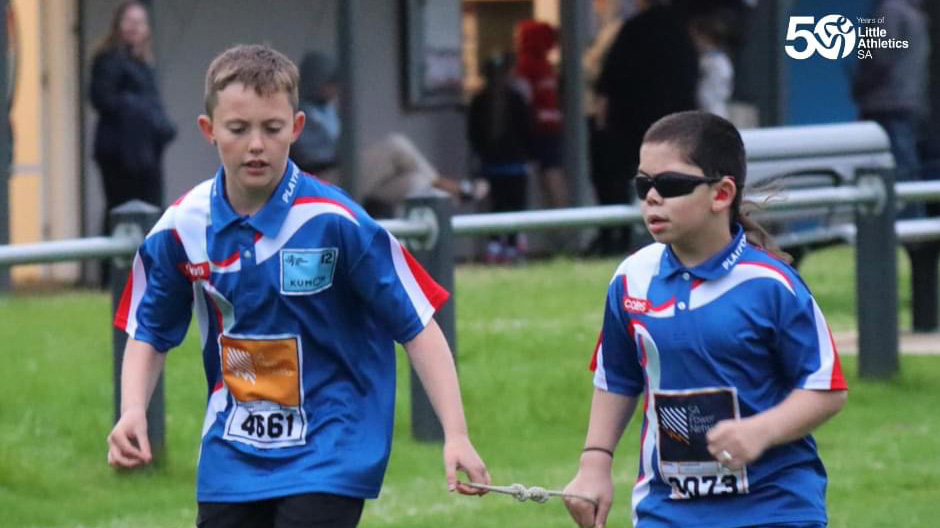
Athletes with changes to vision, hearing and touch.
Vision impairment is a loss of vision that cannot be corrected with glasses. It ranges from low vision to blindness.
Deaf and hard of hearing means that the athlete is not able to hear as well as someone with typical hearing. Hearing loss can be mild, moderate, severe or profound.
Reduced or no sensation is when the person has reduced or loss of sensation to touch. This is sometimes called numbness. When someone has loss of sensation, they may not know when they have hurt themselves as they can’t feel it. If the reduced sensation is in the legs, the athlete may have challenges with balance and coordination.
Sensory processing is how the body takes in sensations, organises the information from the senses and uses this information to respond.
How to support athletes with hearing and vision and sensory changes using the TREE framework.
T – Teaching/coaching style
R – Rules and regulations at the Centre
E - Environment
E – Equipment
Teaching/Coaching style
How the volunteer, parent or coach organises the events, encourages skill development and communicates information to athletes.
Ask the athlete for the best way for you to communicate with them.
For athletes with hearing impairment, use a tap on the shoulder or wave to gain attention before beginning instructions.
Use visuals with verbal instructions for easier understanding.
Demonstrate techniques using body movement.
You or another athlete can demonstrate.
For athletes with vision impairment describe what you are going to do before providing any physical instruction.
For athletes with reduced sensation or loss of sensation such as in the legs, encourage the athlete to check their skin after events involving sand.
Teaching/Coaching for athletes with vision impairment
A guide or caller can be used to guide athletes so they can compete safely and fairly.
Ask the athlete if they need this and what is their chosen method. Beginner athletes will need to try out different methods until they find the one most suitable to them.
Anyone chosen by the athlete can act as a guide.
Tips for guides
Trust is key.
Start slowly when you first begin guiding to be familiar with the athlete.
Be alert. The role of the guide is to support the athlete to attend the whole meet not just the event/s.
Ask the athlete which side they want you on.
Use the athlete’s other arm as a visual guide to keep in step for running events. You should be in sync with both arm and leg movements (as in a three-legged race – but attached at the hands).
Use verbal cues during a race with simple, quick words.
You may assist the athlete to familiarize themselves with the area.
Detailed descriptions.
Physically move through the area to feel objects and gauge distances.
Run + verbal cues only
The athlete will use the guides simple verbal cues to compete.
Run + Elbow lead
The athlete cannot be pulled or pushed.
The athlete and guide stay closer than 0.5m apart.
The athlete is allocated 2 lanes (one each for the athlete and guide).
The athlete will decide if the tether needs to be tight or loose. Start with the tether being long enough for arm movement and short enough to be responsive to changes in direction.
Loop through fingers not around wrist for safety in case anyone falls over.
Run + Rigid Hand-held Tether
The athlete cannot be pulled or pushed.
The athlete and guide stay closer than 0.5m apart.
The athlete is allocated 2 lanes (one each for the athlete and guide).
Long Jump + Caller
The athlete can have a caller to guide them down the runway.
Caller stands either beside the takeoff point or beyond athlete’s landing point in the pit.
Athlete faces the pit for run up.
Athlete places both hands together and point to the direction of the pit. If incorrect, the caller asks the athlete to point to the left or right.
Athletes may be helped with a guide who directs them to the middle of the runway.
If at any stage it appears the athlete will miss the pit, the caller must call “abort” and the athlete re-starts the attempt.
There is no one rule about how to guide down the runway.
Shouting
Use a “number system” (based on track lane numbers).
Assume the athlete is in lane 4 when running straight in the middle of the lane. The caller repeats the word “four”.
If the athlete moves to the right of the Centre, the caller shouts out “3”
If the athlete moves to the left of the Centre, the caller shouts “5”.
The caller shouts “5” or “3” until the athlete has moved to the Centre, and then calls “4”.
Counting
Caller stands behind the middle of the pit.
Caller count strides and athlete jumps when counting stops or when reach pre-determined number.
Clapping
Caller stands behind the middle of the pit.
Caller claps from behind the pit to guide the direction.
High Jump + Caller
The athlete can have a caller to guide their approach and timing of the jump.
Allow the athlete to touch the bar before the jump so they know how high it is.
Hang a bright ribbon over the bar.
Beginners can practice without a cross bar, then with a flexible bar until they are confident in their jump.
There is no one rule about how to guide in high jump.
Clapping
Caller positions themself in front of the jump bar and mat (caller steps back before the jump so they do not get in the way).
Hands clap at the position and height that the athlete will cross the bar.
Clap to guide the direction.
Throws + Caller
Be aware of safety of spectators.
Consider visual support to the field.
Paint, chalk, powder, cones or flags to help orientate the throw.
Offer the implement or place it in their hand.
Caller or guide can take the athlete into and then out of the circle or runway.
Caller will let the athlete know when the throwing area is clear.
Caller may use shouting or clapping from the field to orientate the athlete during the throw.
In the learning stages the athlete can use alternative equipment.
Bean bags or softballs (shot puts)
Hoops (discus)
Turbojavs (javelin).
Rules and regulations at the Centre
Can be modified at the Centre so athletes can participate. Please note that specific rules may apply to higher level competition.
A visual signal (a signal they can see) is preferred so the athlete maintains their autonomy. A visual signal is when you use a hand or flag and say “get set” while you raise your hand and “go” as you lower your hand.
Athletes with sensitivity to noise, which might be someone with Autism for example, also need a signal they can see.
Depending on the classification for higher level competition, athletes may need to follow specific rules.
Athletes with hearing impairment will need to take out their hearing aids.
Athletes with vision impairment may wear an eye covering.
Guides are used differently.
Environment
Changes you can make to the physical space to be inclusive.
To provide a space that everyone can access and use, it is important that the parking lot, entry to field, field, track, viewing area, and amenities can be used by everyone.
Keep the environment organised and store equipment in the same place each time.
Think about lane allocations
Sometimes the inside lane has a lip on the track which can be a tripping hazard.
The outside lane has a gentler curve which is helpful if using equipment or the athlete has a guide.
Earmuffs can support athletes who are sensitive to noise.
Use the equipment in a modified athletics kit which has sound, bright colours and/or lights.
Starter light app can be investigated for Centre level competition or set up a consistent process for touch starts. For higher level competitions, please support the athlete to contact the organisers ahead of time to discuss what will happen on the day.
Canes and guide dogs can be used by visually impaired athletes to move around the Centre.
Coles Little Athletics Australia acknowledges and pays respect to all traditional custodians of the lands of which we work, run, jump and throw throughout Australia. We pay respect to elders both past, present and emerging.
We are committed to a positive future for all Aboriginal and Torres Strait Islander communities and to honor their ongoing cultural and spiritual connections to this country and recognize the role and value of culture.
Accessibility
Accessibility modes
Epilepsy Safe Mode
Dampens color and removes blinks
This mode enables people with epilepsy to use the website safely by eliminating the risk of seizures that result from flashing or blinking animations and risky color combinations.
Visually Impaired Mode
Improves website's visuals
This mode adjusts the website for the convenience of users with visual impairments such as Degrading Eyesight, Tunnel Vision, Cataract, Glaucoma, and others.
Cognitive Disability Mode
Helps to focus on specific content
This mode provides different assistive options to help users with cognitive impairments such as Dyslexia, Autism, CVA, and others, to focus on the essential elements of the website more easily.
ADHD Friendly Mode
Reduces distractions and improve focus
This mode helps users with ADHD and Neurodevelopmental disorders to read, browse, and focus on the main website elements more easily while significantly reducing distractions.
Blindness Mode
Allows using the site with your screen-reader
This mode configures the website to be compatible with screen-readers such as JAWS, NVDA, VoiceOver, and TalkBack. A screen-reader is software for blind users that is installed on a computer and smartphone, and websites must be compatible with it.
Online Dictionary
Readable Experience
Content Scaling
Default
Text Magnifier
Readable Font
Dyslexia Friendly
Highlight Titles
Highlight Links
Font Sizing
Default
Line Height
Default
Letter Spacing
Default
Left Aligned
Center Aligned
Right Aligned
Visually Pleasing Experience
Dark Contrast
Light Contrast
Monochrome
High Contrast
High Saturation
Low Saturation
Adjust Text Colors
Adjust Title Colors
Adjust Background Colors
Easy Orientation
Mute Sounds
Hide Images
Hide Emoji
Reading Guide
Stop Animations
Reading Mask
Highlight Hover
Highlight Focus
Big Dark Cursor
Big Light Cursor
Cognitive Reading
Virtual Keyboard
Navigation Keys
Voice Navigation
Accessibility Statement
www.littleathletics.com.au
30/10/2026
Compliance status
We firmly believe that the internet should be available and accessible to anyone, and are committed to providing a website that is accessible to the widest possible audience,
regardless of circumstance and ability.
To fulfill this, we aim to adhere as strictly as possible to the World Wide Web Consortium’s (W3C) Web Content Accessibility Guidelines 2.1 (WCAG 2.1) at the AA level.
These guidelines explain how to make web content accessible to people with a wide array of disabilities. Complying with those guidelines helps us ensure that the website is accessible
to all people: blind people, people with motor impairments, visual impairment, cognitive disabilities, and more.
This website utilizes various technologies that are meant to make it as accessible as possible at all times. We utilize an accessibility interface that allows persons with specific
disabilities to adjust the website’s UI (user interface) and design it to their personal needs.
Additionally, the website utilizes an AI-based application that runs in the background and optimizes its accessibility level constantly. This application remediates the website’s HTML,
adapts Its functionality and behavior for screen-readers used by the blind users, and for keyboard functions used by individuals with motor impairments.
If you’ve found a malfunction or have ideas for improvement, we’ll be happy to hear from you. You can reach out to the website’s operators by using the following email
Screen-reader and keyboard navigation
Our website implements the ARIA attributes (Accessible Rich Internet Applications) technique, alongside various different behavioral changes, to ensure blind users visiting with
screen-readers are able to read, comprehend, and enjoy the website’s functions. As soon as a user with a screen-reader enters your site, they immediately receive
a prompt to enter the Screen-Reader Profile so they can browse and operate your site effectively. Here’s how our website covers some of the most important screen-reader requirements,
alongside console screenshots of code examples:
Screen-reader optimization: we run a background process that learns the website’s components from top to bottom, to ensure ongoing compliance even when updating the website.
In this process, we provide screen-readers with meaningful data using the ARIA set of attributes. For example, we provide accurate form labels;
descriptions for actionable icons (social media icons, search icons, cart icons, etc.); validation guidance for form inputs; element roles such as buttons, menus, modal dialogues (popups),
and others. Additionally, the background process scans all the website’s images and provides an accurate and meaningful image-object-recognition-based description as an ALT (alternate text) tag
for images that are not described. It will also extract texts that are embedded within the image, using an OCR (optical character recognition) technology.
To turn on screen-reader adjustments at any time, users need only to press the Alt+1 keyboard combination. Screen-reader users also get automatic announcements to turn the Screen-reader mode on
as soon as they enter the website.
These adjustments are compatible with all popular screen readers, including JAWS and NVDA.
Keyboard navigation optimization: The background process also adjusts the website’s HTML, and adds various behaviors using JavaScript code to make the website operable by the keyboard. This includes the ability to navigate the website using the Tab and Shift+Tab keys, operate dropdowns with the arrow keys, close them with Esc, trigger buttons and links using the Enter key, navigate between radio and checkbox elements using the arrow keys, and fill them in with the Spacebar or Enter key.Additionally, keyboard users will find quick-navigation and content-skip menus, available at any time by clicking Alt+1, or as the first elements of the site while navigating with the keyboard. The background process also handles triggered popups by moving the keyboard focus towards them as soon as they appear, and not allow the focus drift outside it.
Users can also use shortcuts such as “M” (menus), “H” (headings), “F” (forms), “B” (buttons), and “G” (graphics) to jump to specific elements.
Disability profiles supported in our website
Epilepsy Safe Mode: this profile enables people with epilepsy to use the website safely by eliminating the risk of seizures that result from flashing or blinking animations and risky color combinations.
Visually Impaired Mode: this mode adjusts the website for the convenience of users with visual impairments such as Degrading Eyesight, Tunnel Vision, Cataract, Glaucoma, and others.
Cognitive Disability Mode: this mode provides different assistive options to help users with cognitive impairments such as Dyslexia, Autism, CVA, and others, to focus on the essential elements of the website more easily.
ADHD Friendly Mode: this mode helps users with ADHD and Neurodevelopmental disorders to read, browse, and focus on the main website elements more easily while significantly reducing distractions.
Blindness Mode: this mode configures the website to be compatible with screen-readers such as JAWS, NVDA, VoiceOver, and TalkBack. A screen-reader is software for blind users that is installed on a computer and smartphone, and websites must be compatible with it.
Keyboard Navigation Profile (Motor-Impaired): this profile enables motor-impaired persons to operate the website using the keyboard Tab, Shift+Tab, and the Enter keys. Users can also use shortcuts such as “M” (menus), “H” (headings), “F” (forms), “B” (buttons), and “G” (graphics) to jump to specific elements.
Additional UI, design, and readability adjustments
Font adjustments – users, can increase and decrease its size, change its family (type), adjust the spacing, alignment, line height, and more.
Color adjustments – users can select various color contrast profiles such as light, dark, inverted, and monochrome. Additionally, users can swap color schemes of titles, texts, and backgrounds, with over seven different coloring options.
Animations – person with epilepsy can stop all running animations with the click of a button. Animations controlled by the interface include videos, GIFs, and CSS flashing transitions.
Content highlighting – users can choose to emphasize important elements such as links and titles. They can also choose to highlight focused or hovered elements only.
Audio muting – users with hearing devices may experience headaches or other issues due to automatic audio playing. This option lets users mute the entire website instantly.
Cognitive disorders – we utilize a search engine that is linked to Wikipedia and Wiktionary, allowing people with cognitive disorders to decipher meanings of phrases, initials, slang, and others.
Additional functions – we provide users the option to change cursor color and size, use a printing mode, enable a virtual keyboard, and many other functions.
Browser and assistive technology compatibility
We aim to support the widest array of browsers and assistive technologies as possible, so our users can choose the best fitting tools for them, with as few limitations as possible. Therefore, we have worked very hard to be able to support all major systems that comprise over 95% of the user market share including Google Chrome, Mozilla Firefox, Apple Safari, Opera and Microsoft Edge, JAWS and NVDA (screen readers).
Notes, comments, and feedback
Despite our very best efforts to allow anybody to adjust the website to their needs. There may still be pages or sections that are not fully accessible, are in the process of becoming accessible, or are lacking an adequate technological solution to make them accessible. Still, we are continually improving our accessibility, adding, updating and improving its options and features, and developing and adopting new technologies. All this is meant to reach the optimal level of accessibility, following technological advancements. For any assistance, please reach out to